

What is OneDrive?
OneDrive is a UW Microsoft 365 cloud service that connects you to all your files. It lets you store, protect, share, and access your files from any of your devices.
Available to current UW students, faculty, and staff with an active UW NetID.
Features
Store and share files
- Store up to 5 TB of data in the cloud (5000 GB)
- File size limit: 250 GB per file
- HIPAA and FERPA compatible
- Share files with UW users who have a UW NetID
Access and synchronize files
- Access files using web browsers or mobile devices
- Access files directly from Microsoft 365 desktop applications, if the appropriate software is installed
- Synchronize files in UW OneDrive to your computer
- Synchronize files in SharePoint Online document libraries to your computer
Access OneDrive online
Back to TopTo access OneDrive online, go to https://uwnetid-my.sharepoint.com and log in with your UW email address and password. The page opens on the Home tab, where you can see your files and files shared with you. Select My files in the sidebar to see files stored in your personal OneDrive
We recommend you bookmark this page when frequently accessing via the web.
Log in and access OneDrive through the app
Back to TopCAS-managed computers already have OneDrive installed.
If you are not logged in, search for “OneDrive” on your computer, then open the OneDrive app. The OneDrive setup window appears.
If you cannot find the OneDrive app, submit a request form to CAS IT or email cas-ithelp@uw.edu.
To log in:
- Enter your UW email address in the format yourNetID@uw.edu.
- Enter your password, then complete Duo two-factor authentication
- Select a location for your OneDrive folder and select Next
- We recommend the default /Users/yourNetID/OneDrive – UW
- On Windows, choose which folders you want to back up
- Select the folders you want backed up
- Select Start backup. If your folders are already backed up, select Next
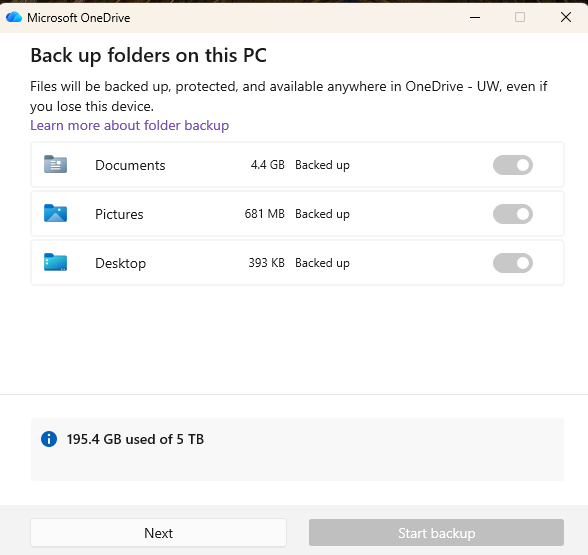
Shows an instance when folders are already backed up. The toggle buttons are clickable when folders are not yet backed up.
- On Mac, grant OneDrive permission to start syncing. Select Next, then select OK when prompted
- Follow the prompts in the OneDrive setup window and select Next as needed
- Optional: install the OneDrive app on your phone
- Congratulations! You’re all set up!
How to access OneDrive once set up
Select the OneDrive icon (cloud) in the Windows taskbar or the Mac menu bar. A panel opens with your recent sync activity.


Select “Open folder” or “View online” on the panel to see all files and folders stored in OneDrive.
- The Open folder option opens a window on your desktop. You can also access OneDrive from File Explorer on Windows or Finder on Mac by selecting it on the sidebar.
- The View online option will open a browser window or tab at https://uwnetid-my.sharepoint.com
- The page opens on the Home tab, where you can see your files and files shared with you. Select My files in the sidebar to see files stored in your personal OneDrive
OneDrive sync, status icons, and deleted files
Back to TopSync
OneDrive can sync files between your computer and OneDrive online so you can access them from any device using the OneDrive app or the web.
To confirm OneDrive is syncing, select the OneDrive cloud icon. Look for a message such as Backed up and synced, or check whether any files show a sync error.
Status icons
OneDrive uses several status icons. Review Microsoft’s guide to OneDrive icons at https://support.microsoft.com/en-us/onedrive/what-do-the-onedrive-icons-mean
Common Status Icons
| Icon | Meaning |
|---|---|
|
Blue cloud |
The file or folder is only available online. It does not take up storage space on your device. Can not be opened without internet access |
|
Green checkmark inside a circle |
Opening an online only file downloads to your device and can be opened without internet access |
|
Two blue circular arrows |
Sync in progress |
|
Person outline |
The file or folder has been shared to other people |


Deleted files
Changes you make in the OneDrive folder on your computer also sync to OneDrive online. If you delete a synced file from your computer, OneDrive may also delete it from OneDrive online and other synced devices.
Deleted OneDrive files may be recoverable from OneDrive for a limited time. Open OneDrive from the desktop icon or the web, then select “Recycle bin.” If you cannot find a deleted file, contact CAS IT as soon as possible.
Use OneDrive offline
Back to TopMaking files available offline lets you access them without an internet connection, which is useful when traveling or working in areas with limited connectivity. Keep in mind that offline files are stored on your computer and count toward your available storage space. If you're running low on disk space, consider making files or folders online-only again to remove the local copy while keeping them available in OneDrive.
How to make files available offline
Files and folders stored in OneDrive can be made available offline on your computer. An internet connection is required the first time the files or folders are downloaded. To make them available offline:
- Go to OneDrive: https://uwnetid-my.sharepoint.com/
- Navigate to My files at the side navigation
- Right-click the file or folder, then select Make available offline.
The selected items sync for a few moments. When the sync is complete, a banner appears at the bottom of the page confirming that the files or folders are available offline.

Alternatively, files opened from OneDrive in File Explorer (Windows) or Finder (Mac) are automatically downloaded and made available offline. Files and folders available offline display a green checkmark in a circle in the Status column.
Make files online-only
The easiest way to make files online-only is from OneDrive in File Explorer (Windows) or Finder (Mac). Identify the files or folders available for offline access by checking the icon on the status column (checkmark inside a circle)
- Right click on the file or folder
- Select Free up space
The icon changes to a blue cloud, indicating that the file or folder is available online only. The local copy is removed to free up storage space, but the file remains in OneDrive and downloads again the next time you open it while connected to the internet.
File sharing basics
Back to Top- Right click a file or folder to open options in the OneDrive desktop app or OneDrive online to open the options menu
- Select Share
- Add UW names, groups, or email addresses
- Optional: Select Can edit (pencil icon) to change what others can do with the file or folder Note: By default, Can edit is selected. Other options include Can view and, when available, Can’t download
- Select Send

Share a link instead
- Optional: Select the Link settings (cog icon) to change permissions. Note: By default, People you choose is selected, which means only the people you specify can use the link. Other options include People in UW
- Optional: Choose whether recipients can edit, can view, or cannot download the file or folder
- Optional: If available, set an expiration date when the link stops working
- Select Copy link, then paste the link into an email, chat, or other document